
Thanks for your feedback!
EDIT
|
|
Follow the steps below to configure Policy Enforcement for the Maturity Report:
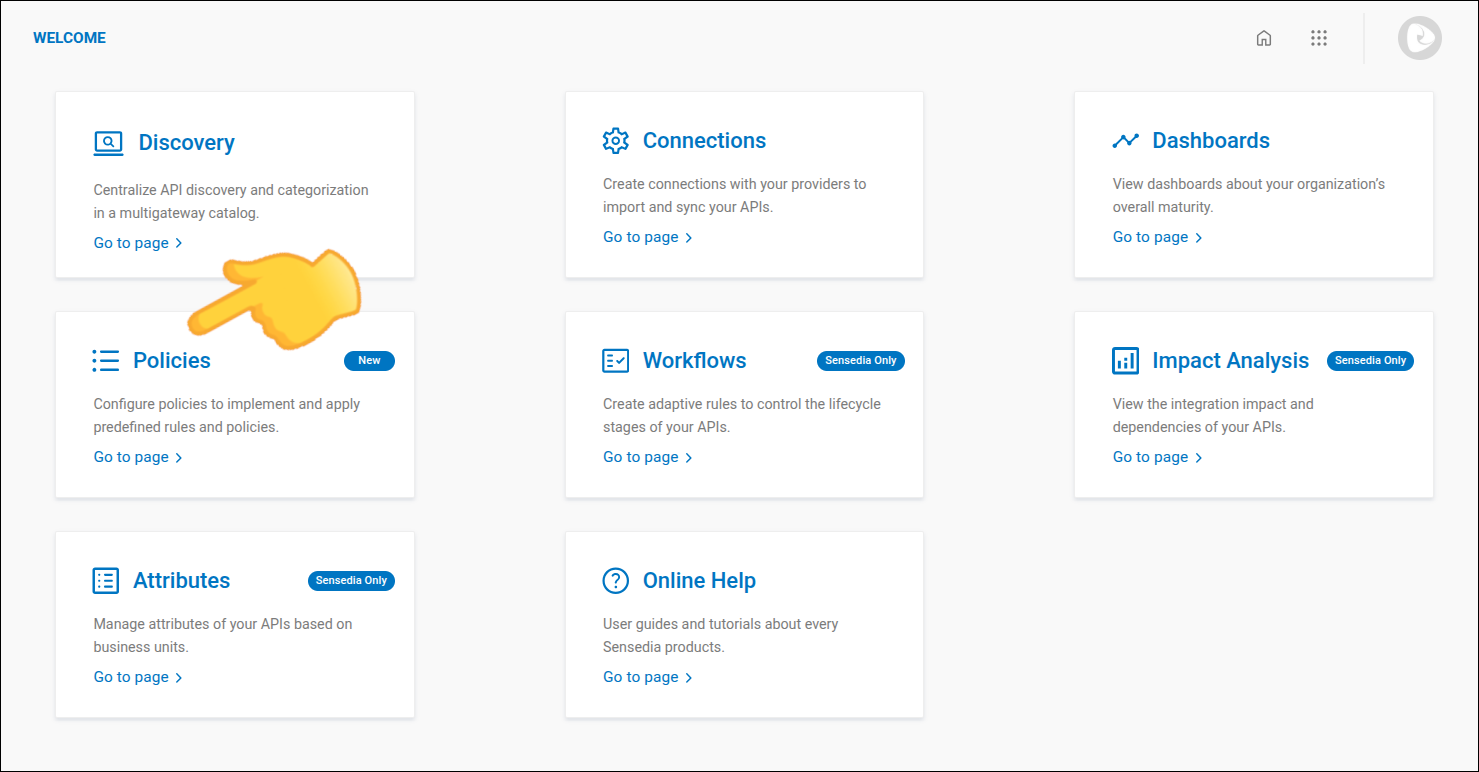
On the Adaptive Governance home screen, click Policies.
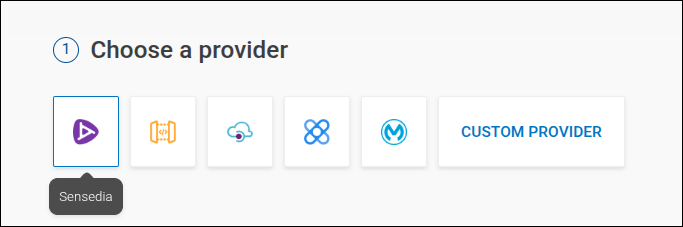
Select the gateway where your APIs are located.
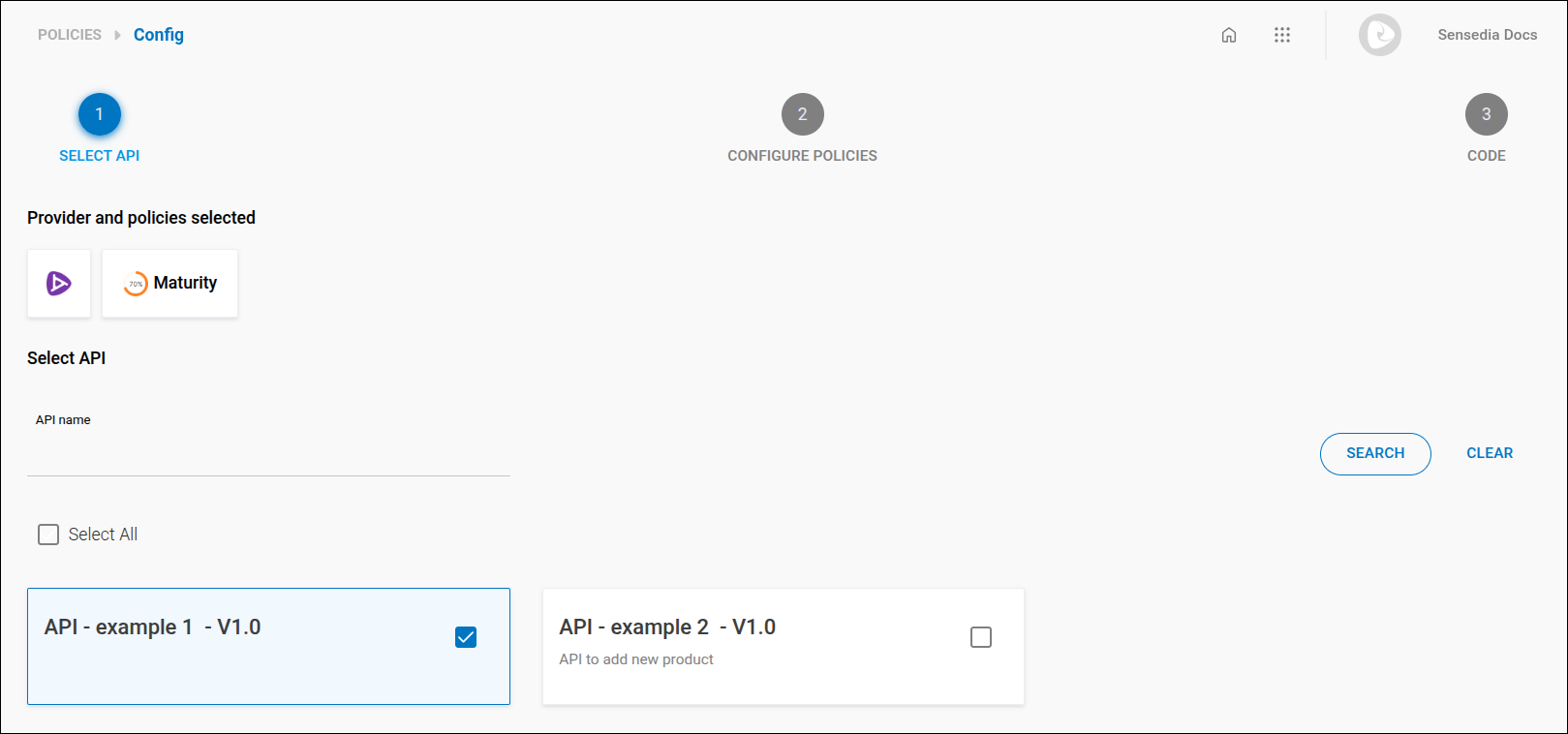
Select Maturity and click GET AUTOMATION CODE.
Select one or more APIs
| If your connection is non-native, skip to step 5. |
You can search by API name, select from the list, or click Select All to select all APIs.
Then, click Next.
Indicate the target maturity level and click NEXT.
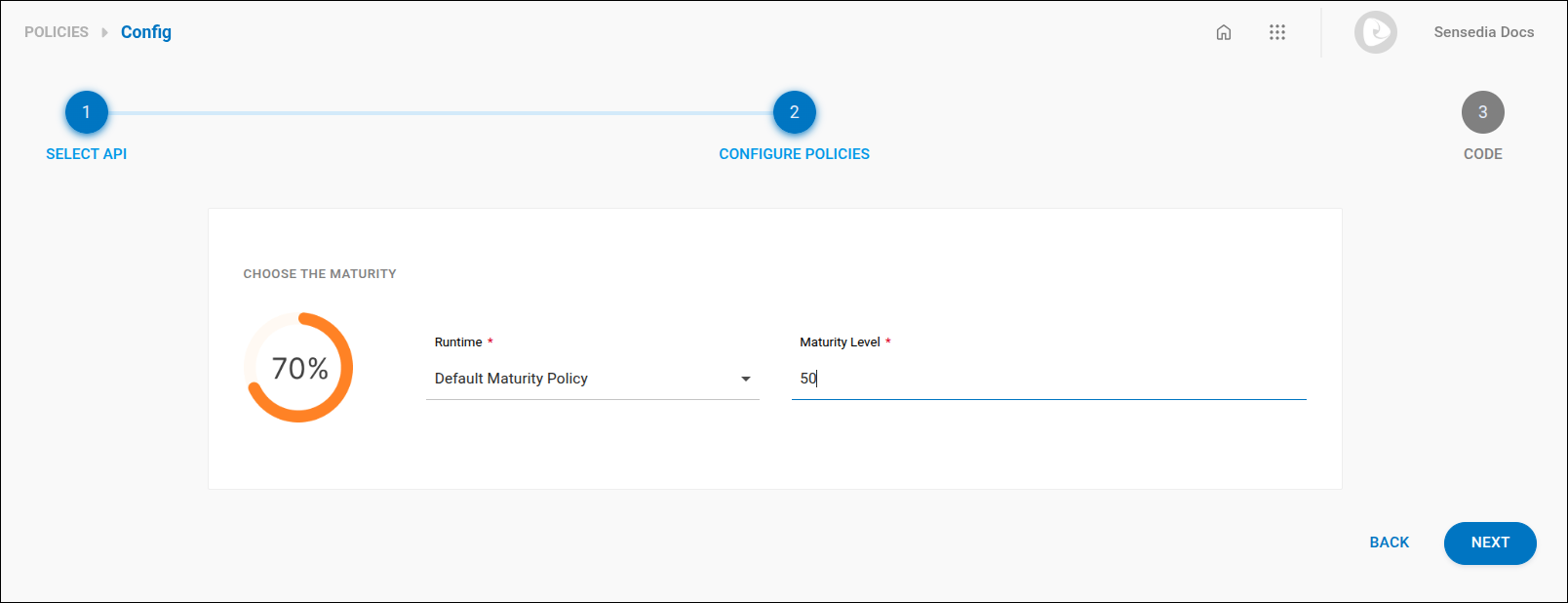
For example, if you enter "50" as the maturity level, Policy Enforcement will validate whether the selected APIs have a maturity score equal to or greater than 50%.
If an API has a maturity score below 50%, when running the CLI command, Policy Enforcement will return an error, indicating that the API does not meet the established maturity level.
If the APIs have maturity scores equal to or greater than 50%, a success message will be returned.
Copy the command (which will be used in step 9) and click DOWNLOAD CODE.
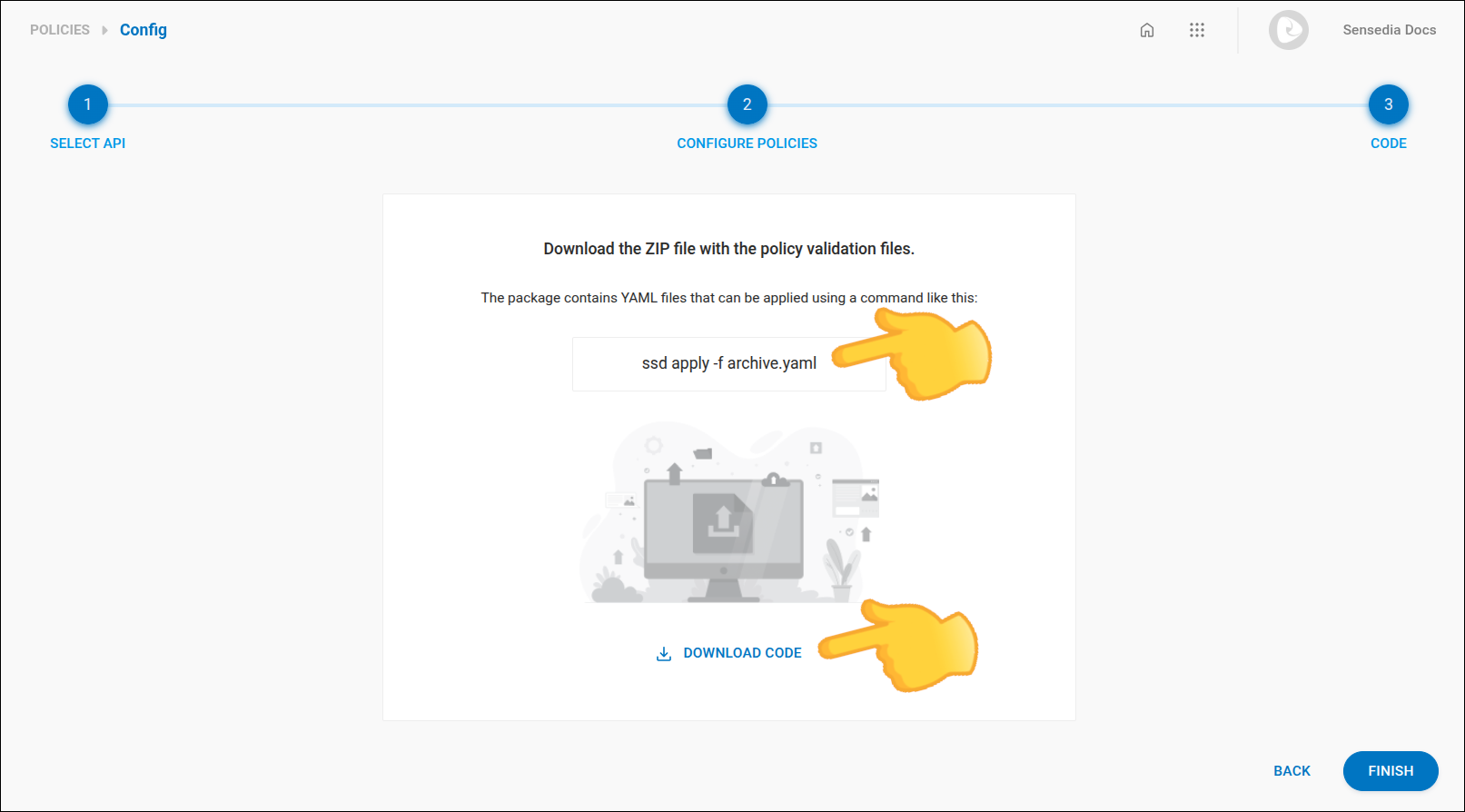
Unzip the downloaded .yaml file. To make it easier, you can save it in the same folder in which the contracts of the APIs you want to validate are located.
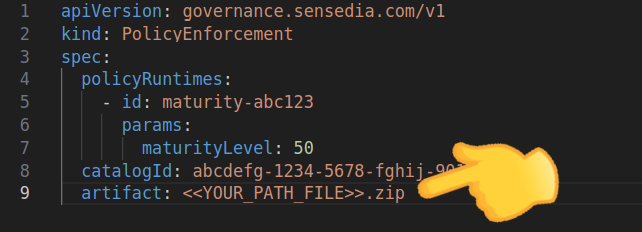
Open the downloaded .yaml configuration file and, in spec > artifact, replace << YOUR_PATH_FILE >> with the API contract file name. Do not use the << >>.
If the .yaml file is in the same folder as the API contract, enter only the file name. Otherwise, also enter the path to the file.
The contract must be in json format, compressed in .zip format.
|
The rest of the process is done via Sensedia CLI:
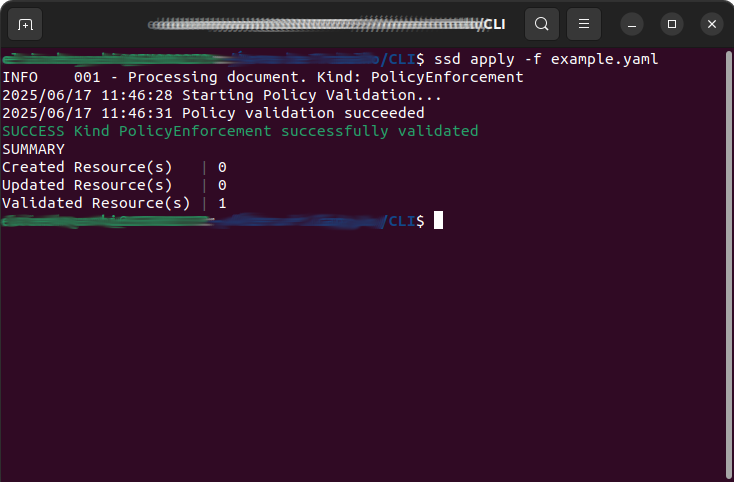
In the CLI, run the command you copied in step 6:
ssd apply -f [file-name].yaml, substituting [file-name] with the name of the configuration file you downloaded. Do not use the '[]'.
| If you do not yet have the Sensedia CLI, see the Sensedia CLI installation documentation. |
If the API complies with the specified policy, the command will return a success message.
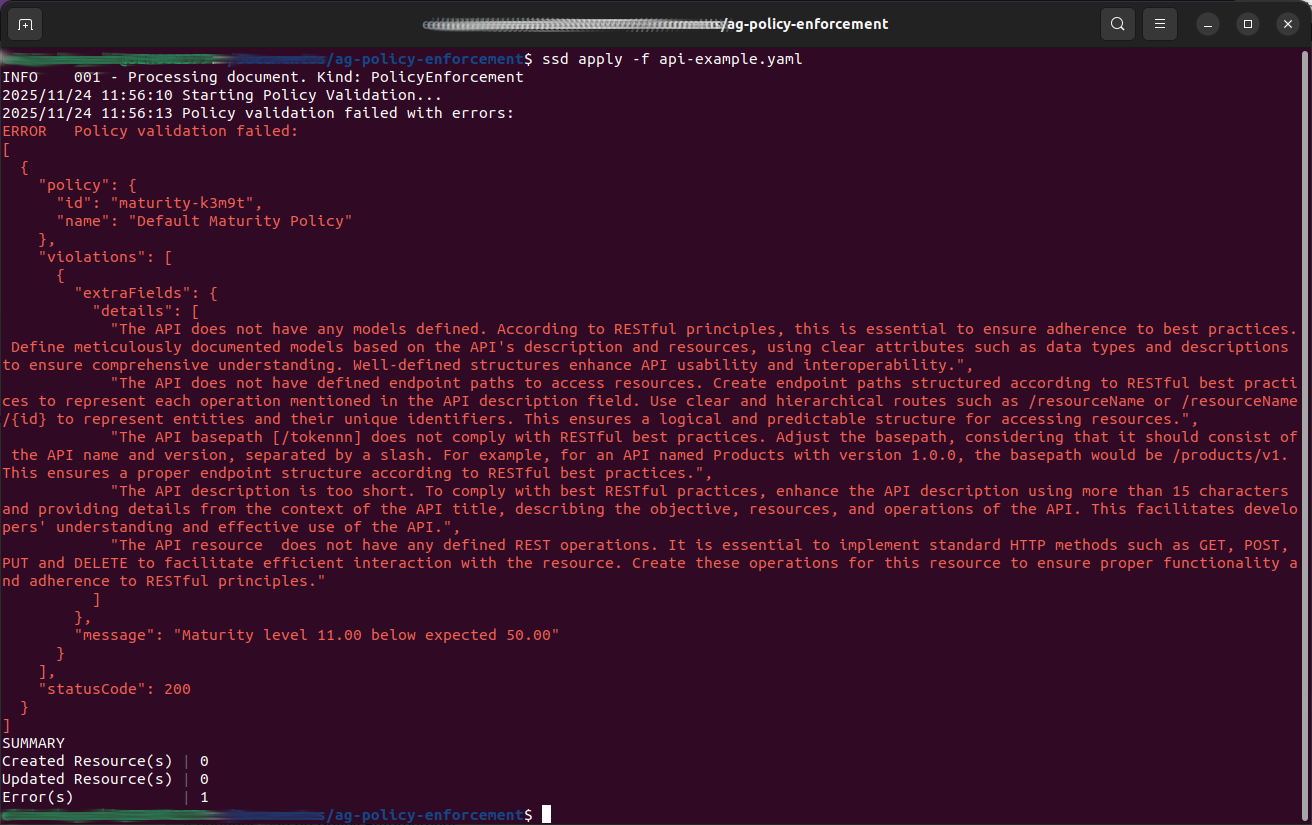
Otherwise, the command will return an error message indicating what was non-compliant.
|
Consult the Sensedia CLI documentation for more details on:
|
|
Use our AI resources to: |
Share your suggestions with us!
Click here and then [+ Submit idea]