Thanks for your feedback!
EDIT
To add a new API manually, click the + Create API button located in the upper right corner of the API Catalog screen. A menu will open with the following options for creating APIs:
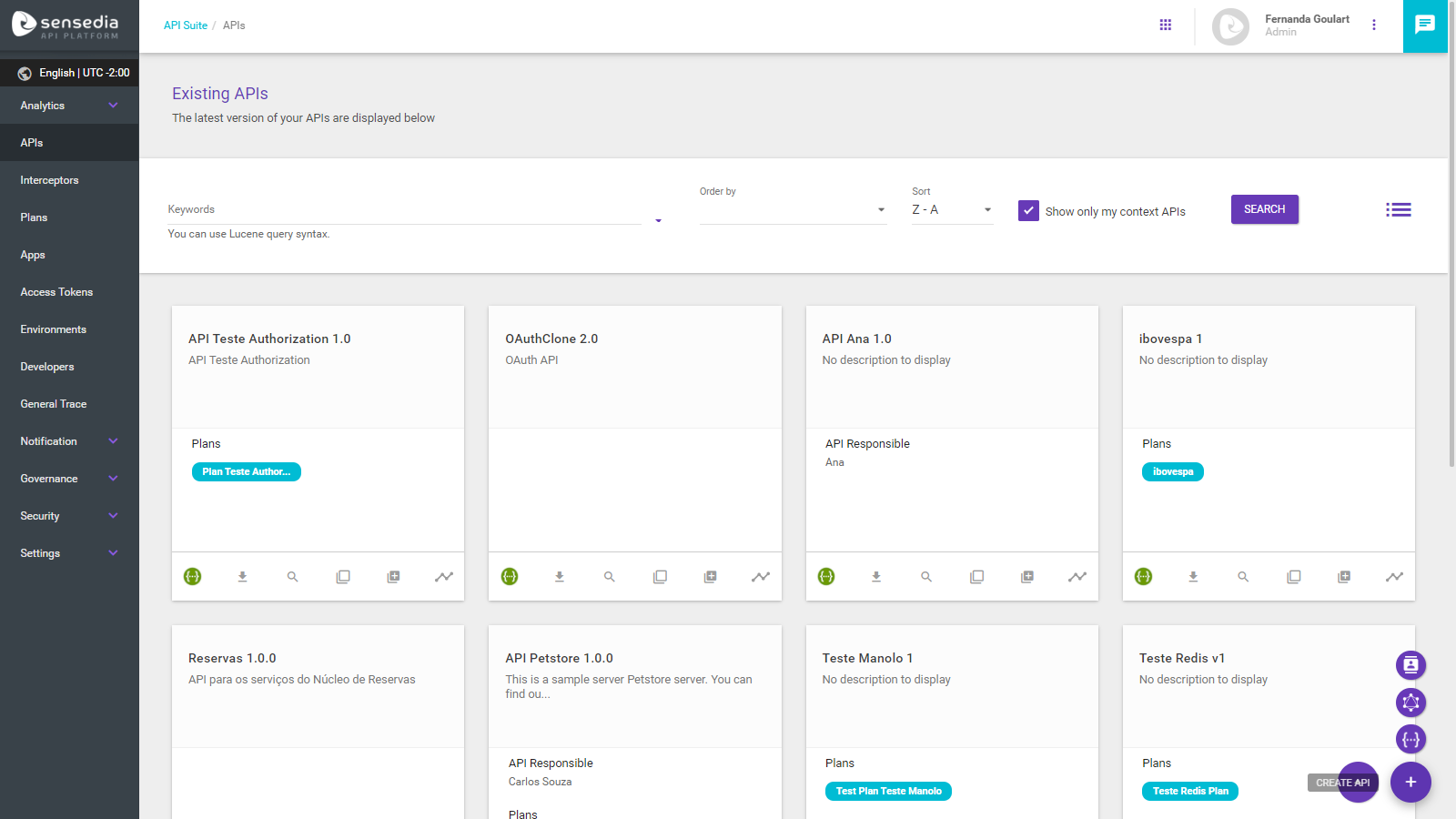
Create API: allows you to create a REST API from the API Management interface by entering all the data manually.
Create Identity: you can create an API Identity by inserting the data manually.
Create GraphQL: you can create a GraphQL API by inserting the data manually.
Import an API: allows you to create an API by importing a documentation file in JSON or YAML format. See more about the import process and accepted specification versions below.
Create API with AI: create a new REST API with the help of artificial intelligence. Check out the complete guide for this option.
| To have the Create API with AI option available in your environment, request its activation from the product team through the support channel. |
When clicking on Create API, you will need to select, in the modal window that opens, which specification the API should follow: Swagger 2.0 or OpenAPI 3.0. The selected specification version will be maintained internally by the system.
After choosing one of the options listed above, the registration screen will be displayed, and the required fields must be filled (with the exception of importing a Swagger file; in this case, the API is created with all required fields, which can be edited later).
Other than letters and numbers, these are the accepted characters for the path:
|
|
See also: |
If there are environments set up in the Environments page, the option Deployable Environments will be displayed. Otherwise, you might add it later, so it’s not a requirement at this point.
The option Access token expires in determines the token expiration period for a specific API. In case the field is left empty, the default time of 3600 seconds will be applied.
The Context field defines the visibility of your API, which determines which users can view it. These are the options:
Organization: the API will be visible to all users on the system;
Teams: the API will also be visible to the users who are members of the selected team.
| Learn more about the creation of teams with Access Control; |
Only me: the API will be available only to its original author;
Add users: the API will be visible to specific users:
| To configure the visibility options of your API correctly, users and teams need to be registered. Check the documentation for Access Control to learn more about the creation of users and roles. |
When enabled, the Private API option prevents the API from being consumed in the Developer Portal.
When clicking Save and next, the basic data of the API will be saved. The next two steps (Resources and Flows) are not mandatory (if you import a Swagger file, though, the resources data will be already filled out for you). For more details, access the sections on Resources and Flows.
The last step to create an API is the Publish screen:
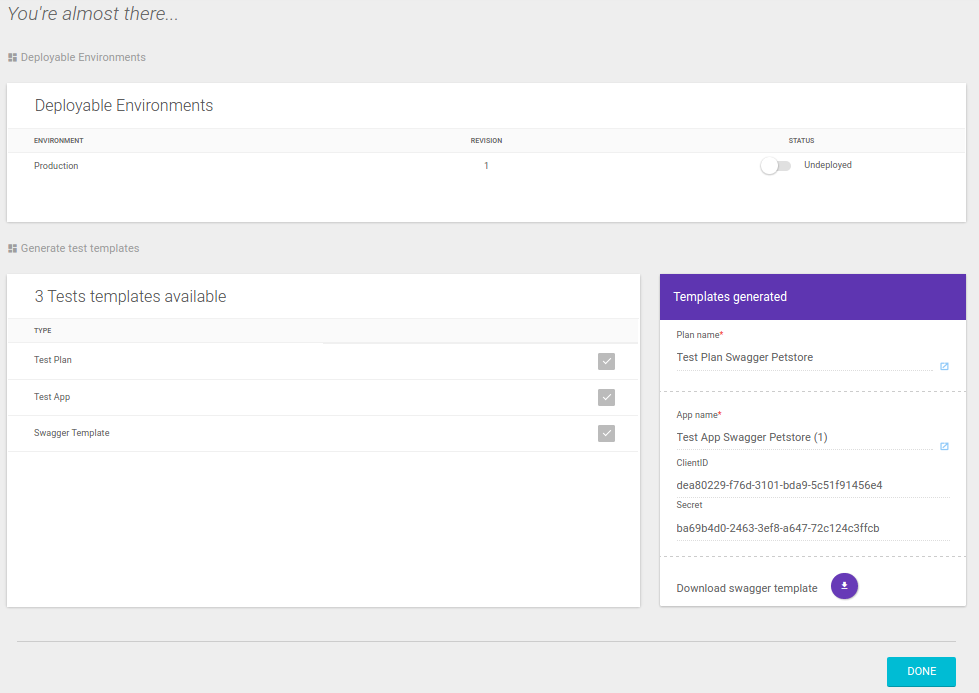
This screen allows the API to be deployed, provided the Environments option has been selected in the beginning of the API creation. It is also possible to create test templates, which generate a plan and an app to be linked to the API you are creating. This option enables the immediate use of your API.
All registered APIs are displayed in cards.
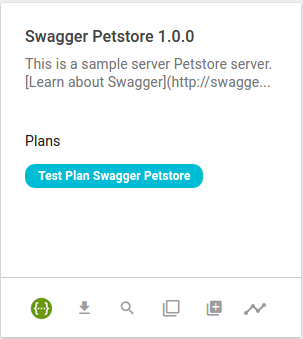
To access the API edit screen, click the card. You will be redirected to the Overview screen.
To edit the API information, click Edit API, located in the upper-right corner of the screen.
|
The Overview screen is intended exclusively for viewing information. Any changes to the API can only be made on the Edit API screen. For more information, see the documentation for the Overview screen. |
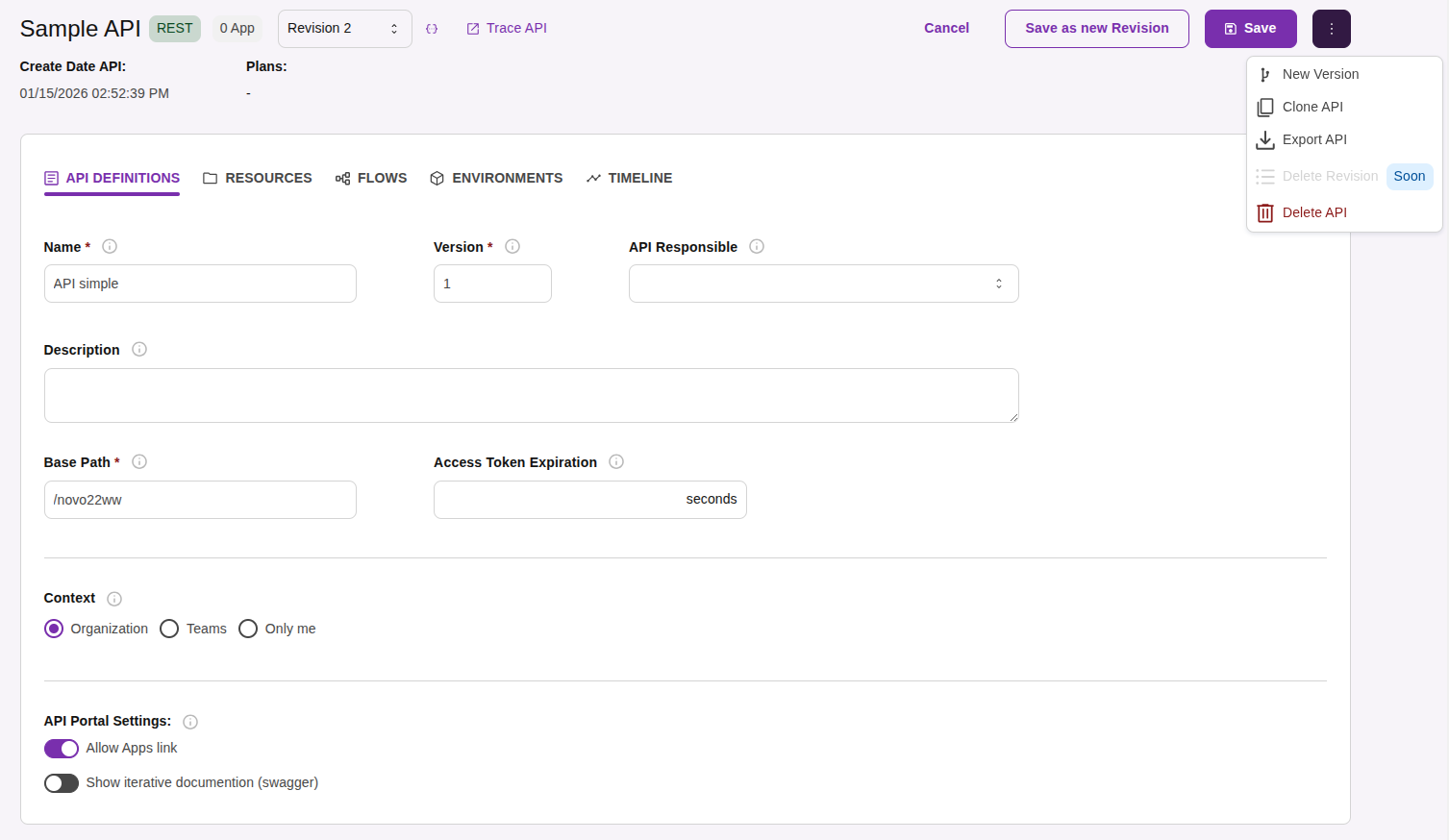
At the top of the Edit API screen, the API’s general information and the main actions in the editing flow are displayed.

In this area, you can:
view the API Name, Type (REST or GraphQL), and whether the API is an Identity.
check the number of associated Apps and the selected Revision.
enable the Swagger editor.
access API Trace.
view the API creation date.
view the associated plans, when available.
In the general information area, the following actions are also available:
Save: saves all changes made across all API tabs. Saving is not limited to the active tab; the API is saved as a whole.
Save as new revision: saves the changes by creating a new API Revision.
|
Next to the Save button, the action menu (more options button ⋮) is available and groups API operations such as creating a new version, cloning, exporting, and deleting.
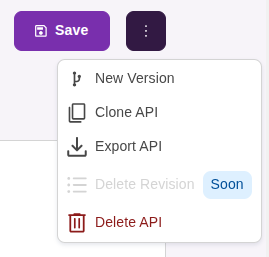
|
To delete an API, you must type delete to confirm the action. |
The API Definitions tab allows you to configure the API’s basic settings, such as identification, organizational scope (context, organization, and teams), and exposure options in the Portal.
|
The Description field lets you adjust the size of the editing area. Use the control in the lower-right corner of the field to expand or reduce the typing space. |
The API Portal Settings feature in this tab lets you configure the API’s visibility and availability in the Developer Portal. The available options are:
Allow Apps link: when enabled, the API is available in the Register New App section of the Developer Portal. Otherwise, the API cannot be consumed by apps.
Show iterative documentation (Swagger): when enabled, the API is available for testing in the Developer Portal. Use the Add try it out environments button to select the test environments and the revision that will be applied.
|
The settings available in API Portal Settings apply only to Portals based on the Drupal stack. In the new Developer Portal based on Strapi, these settings appear directly in the Portal Manager. |
Changes made in this tab are applied only after clicking Save.
The Resources tab lets you edit the API resources and operations.
When resources are registered, each item in the list displays an action menu (more options button ⋮).
Through this menu, you can:
at the Resource level:
add a new operation
edit the resource
delete the resource
at the Operation level:
edit the operation
delete the operation
Changes made in this tab are applied only after clicking Save.
The Flows tab lets you edit the interceptors applied to the API resources and operations.
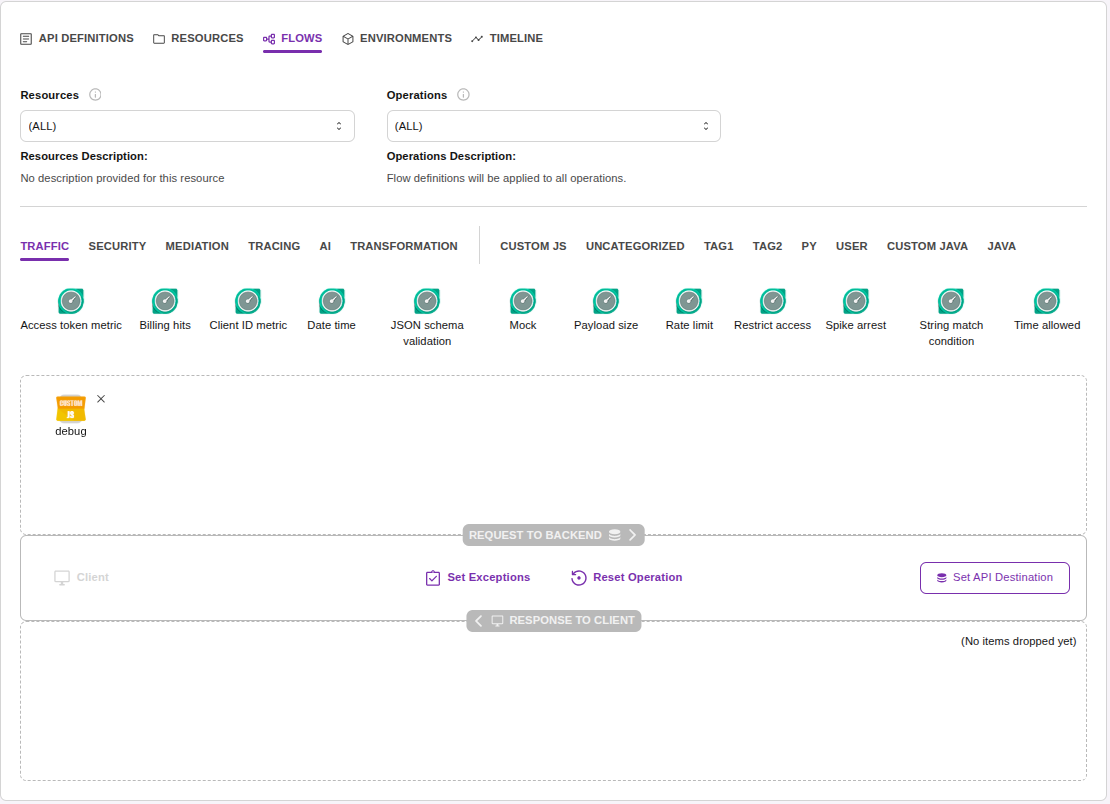
The flow opens directly in edit mode.
During editing, you can:
configure and adjust the flow interceptors.
use the Reset Operation button, available directly in the Flow.
view a tooltip when hovering over the Reset Operation button.
confirm the reset action through a confirmation modal.
define the request destination using the Set API Destination option.
|
The Environments tab lets you edit the environments where the API is deployed.
![][width=90%](_images/environments-edit.png)
In this tab, you can:
add a new environment to the API using the Add Environment option.
perform Deploy and Undeploy actions, which are executed immediately after confirmation, independently of the Save button.
confirm the action when changing the Deploy switch state.
copy the environment URL using the available Copy button.
remove environments directly from this screen using the Delete button.
|
To delete an API, use the Delete API option available in the action menu (more options button ⋮) located in the upper-right corner of the screen.
To confirm deletion, you must type delete.
You can create APIs by importing documentation files that follow the OpenAPI specification. The accepted versions of the specification are: Swagger 2.0 or OpenAPI 3.0.
To do this, hover the cursor over the + button in the bottom right corner of the API Catalog screen (accessible from the API Design menu) and click on the option Import an API. The following modal opens:
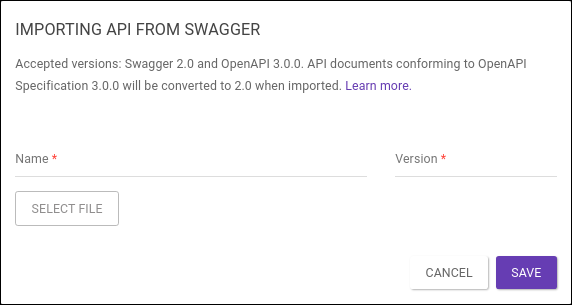
Enter a name and version for the API that will be created and click Select file to choose a file from your machine to import. Accepted formats are JSON and YAML.
The original specification version of the imported documentation will be kept internally by the system.
Share your suggestions with us!
Click here and then [+ Submit idea]